
Aug 15
Make linking to Blog posts easier
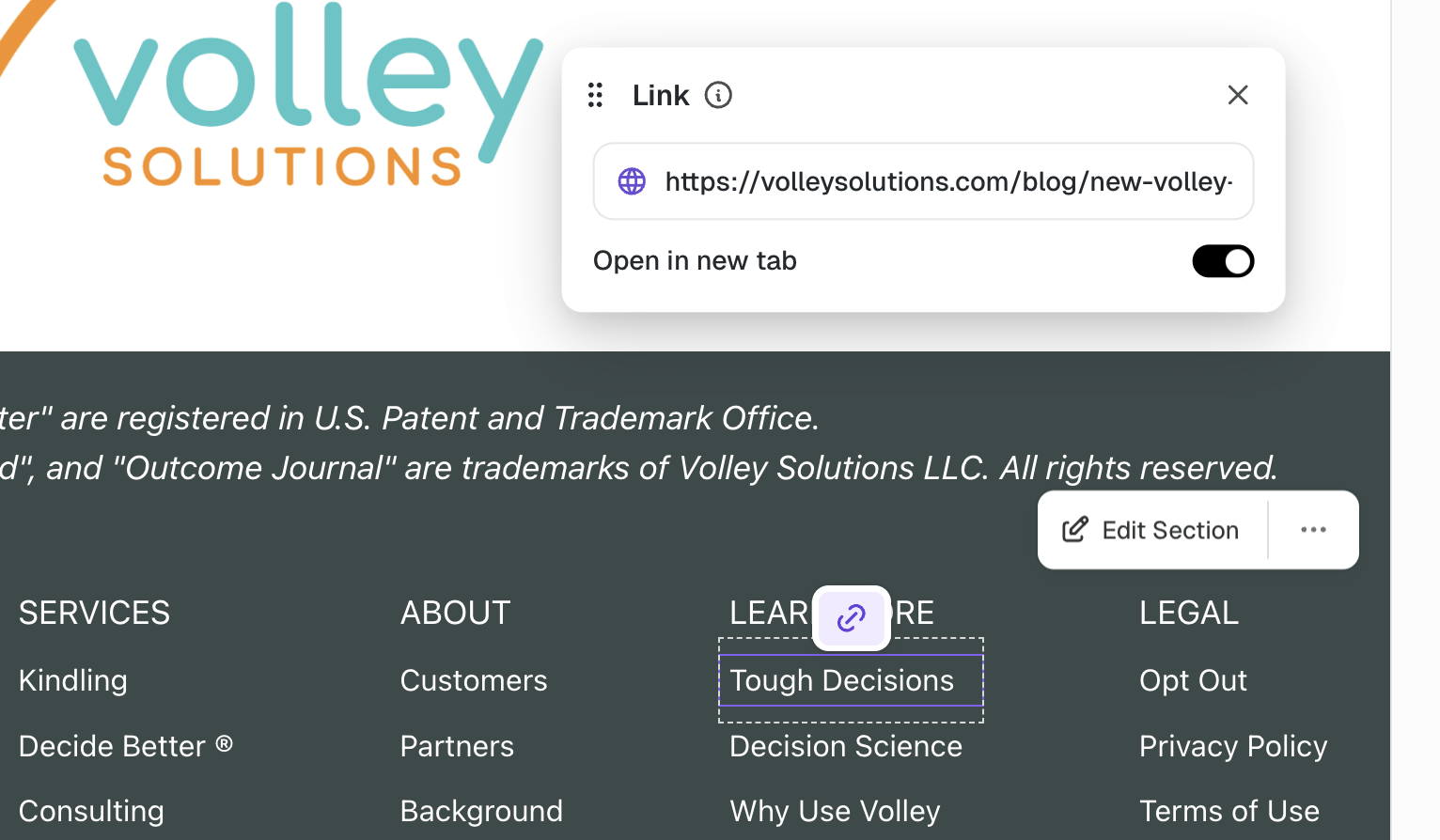
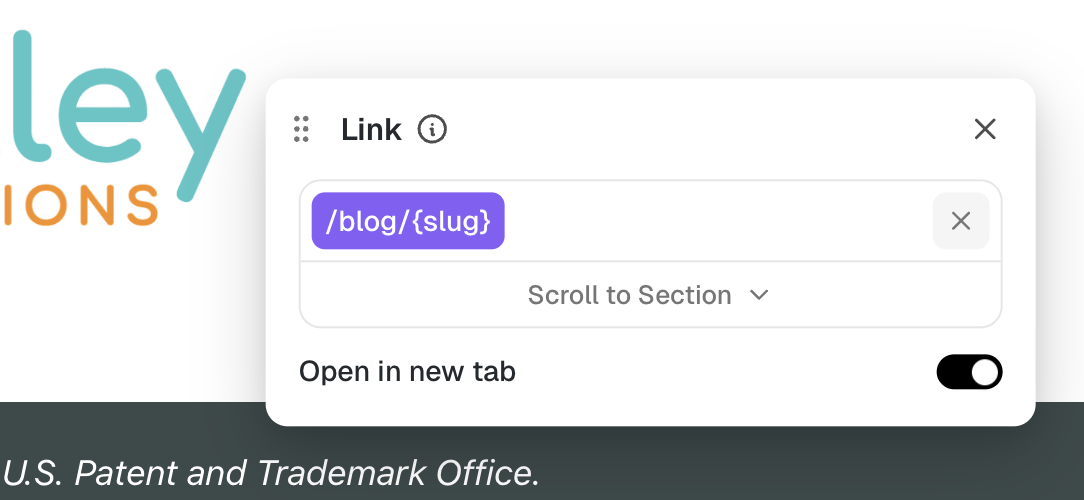
According to Google AI (response posted below), this is pretty easy to do. But it doesn’t seem to work in reality, in that the entire link must be pasted, since the editor doesn’t provide a list of Blog posts, and the “/blog/{slug}” choice isn’t configurable.
**AI Overview**
To create a direct link to a blog post using its slug in Umso, you simply need to build the URL path as `/blog/[slug]` (or whatever you have set as your blog base URL) and connect it using the Umso link settings

[**<u>Links | Umso Help Center</u>**](https://help.umso.com/links-kh4b1).
Here is how you do it:
1. **Find the Post Slug:** In your Umso dashboard, go to **Posts** , select the post you need, and view its settings to see or edit the **Post Slug**
2. **Add a Link Block:** In the Umso editor, click the text, button, or card that you want to use as your link.
3. **Configure the Link:** In the link settings, set the link action to **Page** or **URL** Links | Umso Help Center.
4. **Set the Destination:** Enter the URL for the post as `/blog/your-post-slug` (replacing `your-post-slug` with your actual slug).
For automatic internal linking and easy management, you can also select the specific blog page directly from the **Page Picker** menu in Umso, which will dynamically generate the correct URL for your visitors Links | Umso Help Center.



Reviewing